
In this video, you’ll learn how to send an email newsletter or campaign to your email list.
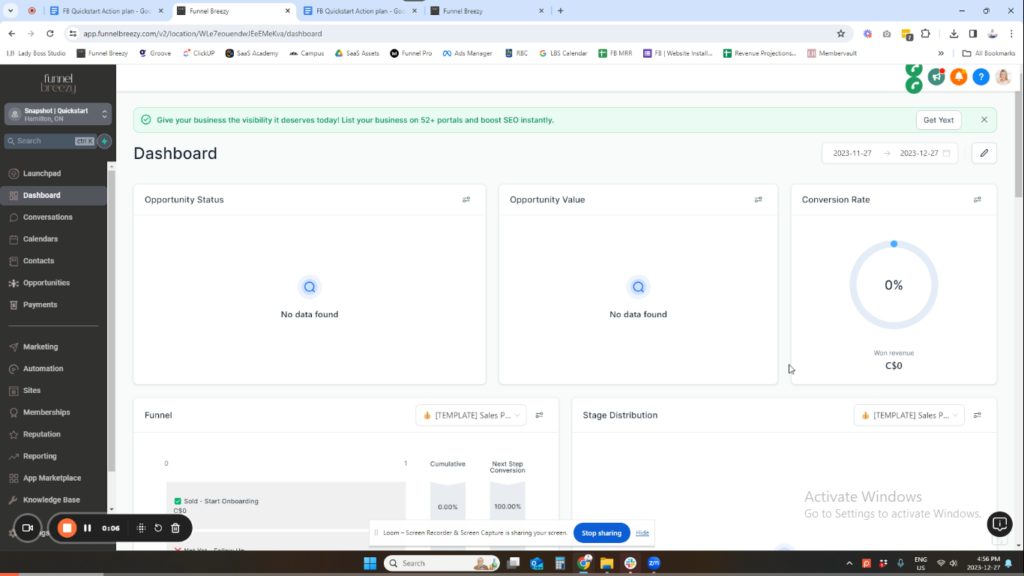
Sending an Email Newsletter Campaign with infinity interface #
This guide will show you how to create and send an email newsletter campaign using infinity interface.
Before You Begin:
- Ensure you have at least one contact on your email list.
Steps:
- Edit the Email Template (Marketing > Templates > General Emails):
- Change the background color according to your brand.
- Edit the email header image using a Canva template.
- Update your social media icons and footer information (if not already done).
- Save the Template:
- Click “Save” to preserve your edits.
- Click “Save” to preserve your edits.
- Create a Campaign (Marketing > Campaigns):
- Choose “General Emails” and select the template you just edited.
- Add content using the drag-and-drop elements (buttons, images, dividers, etc.).
- Test the Email (Optional):
- Enter two different email addresses for a test email.
- Review the email for any errors.
- Schedule or Send the Campaign:
- Enter your sender information (name and email address).
- Craft a subject line and pre-header text (optional).
- Choose “Send Now” or schedule the email for a later date/time.
- If scheduling, set the batch size (number of emails sent per hour) if desired.
- Select Recipients (Optional):
- Choose “All Contacts” or create a smart list for a specific audience.
- Target recipients based on tags (e.g., users who downloaded a lead magnet).
- Send the Campaign:
- Click “Send” to launch the email campaign.
- Click “Send” to launch the email campaign.
- Track Performance (Optional):
- Monitor the campaign’s statistics (opens, clicks, etc.) in the “Drafts” section.


