
How to add in your own email sending domain. #
In this video, we’ll teach you how to add in your own email sending domain credentials to your domain registrar.
Make sure you are logged into your domain registrar before you get started!
Additionally, here are the values you need for adding your DMARC record (if you haven’t already added one).
TXT Record
Host: _DMARC
Value: v=DMARC1; p=none;
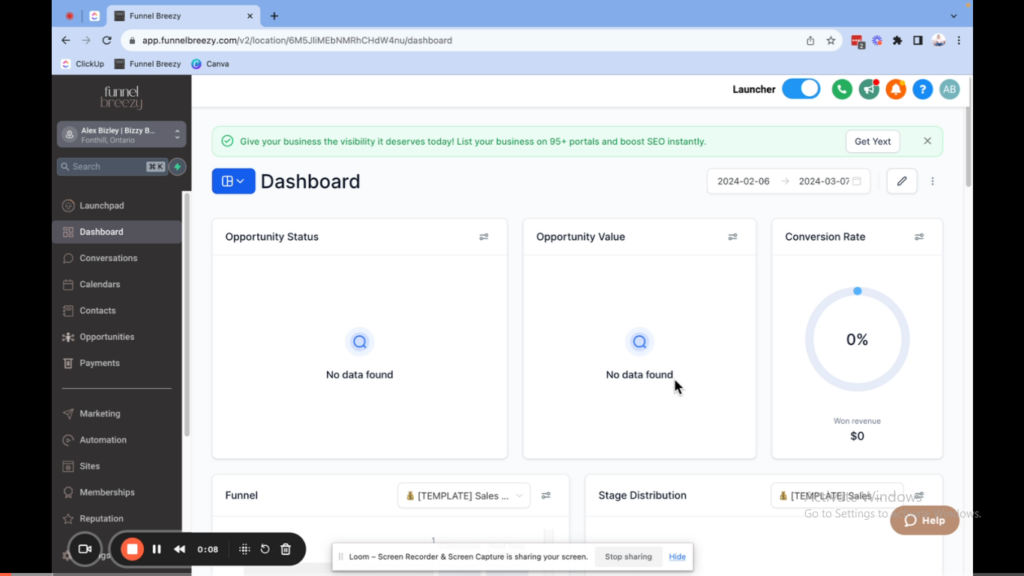
Walkthrough
Other Ideas of Sub-Domains You Could Use (if you don’t use mail.yourdomain.com):
- email.yourdomain.com
- m.yourdomain.com
- send.yourdomain.com
- sending.yourdomain.com
How to Add a Sending Domain to Your infinity interface Account #
This guide will show you how to add a subdomain for sending emails in infinity interface. This is important if you want to send emails such as confirmation emails or newsletters.
Things to Know Before You Begin:
- You’ll need to access your domain provider’s DNS records. (e.g., Namecheap, GoDaddy, Bluehost)
- In some cases, your email and website hosting might be separate. Make sure you update the DNS records for where your domain is currently pointed.
Steps:
- Go to Settings in infinity interface
- Click on “Settings”
- Scroll down to “Email Services”
- Click on “Dedicated Domain and IP”
- Add a New Domain:
- Click the button “Add Domain”
- Important: Choose a subdomain that you aren’t currently using (e.g., mail.yourdomain.com, send.yourdomain.com)
- Click “Add and Verify”
- Verify the Domain in Your DNS Management:
- Log in to your domain provider’s account (e.g., Namecheap)
- Find the section for managing DNS records (e.g., “Advanced DNS”)
- Important: Typically, you’ll only need to copy the “Host” value from infinity interface, not the entire record including your domain name.
- Add the following TXT records to your DNS with the provided Host value and corresponding value from Infinity Interface.
- Host: (from infinity interface)
- Value: (frominfinity interface)
- Repeat for the second record (Host: mail, Value: (from infinity interface))
- In some providers, MX records might be in a separate section. You might need to switch them to “Custom MX” to add the following records:
- Host: mail (Priority: 10)
- Value: mxa.mailgun.org
- Host: mail (Priority: 10)
- Value: mxb.mailgun.org
- Add a DMARC Record (Optional but Recommended):
- A DMARC record helps with email deliverability and compliance.
- Add a TXT record with the following:
- Host: _dmarc (underscore dmarc)
- Value: v=DMARC1; p=none;
Verification and Additional Notes:
- It can take some time (usually up to 48 hours) for the DNS changes to propagate.
- You can click “Verify Domain” again in infinity interface to check the status.
- Infinity Interface will automatically set up DKIM and SPF records for you.
- You’ll still need to configure your email address and reply-to address in separate settings (e.g., Google Workspace).


