
Funnel Page Builder Walkthrough #
In this video, you’ll learn how to edit funnel pages within the funnel page builder inside of infinity interface.
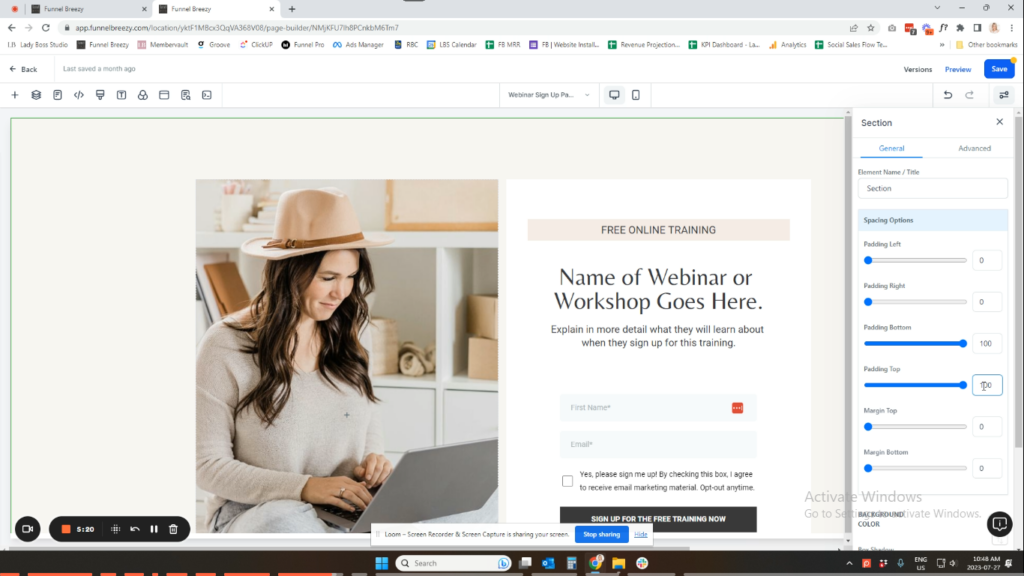
Editing a Funnel Page in infinity interface. #
This guide will walk you through editing a funnel page in infinity interface.
Opening the Page in Edit Mode
- Go to your funnel and locate the page you want to edit.
- Click on the page to open it.
- For best practice: Edit the page in a new tab by right-clicking and selecting “Open link in new tab.” This keeps the original page open for reference.
Funnel Breezy Page Builder Interface
- Sections (Green): These are the main building blocks of your page.
- Rows (Blue): Sections are divided into rows.
- Columns (Purple): Rows are divided into columns.
- Widgets (Orange): These are the elements you add to your columns, like headlines, images, and forms.
Adding and Moving Elements
- Add a new section: Hover under a section and click the plus sign. Choose the number of columns you want (1, 2, 3, or 4).
- Add a new row: Hover under a row and click the plus sign. Choose the number of columns you want.
- Add a widget: Click the plus sign within a column and select the widget you want to add (e.g., headline, image, form).
- Move a widget: Click and drag the widget to a new location.
- Duplicate a widget: Hover over a widget and click the duplicate icon.
- Delete a widget: Hover over a widget and click the delete icon.
- Move sections and rows: Click the up and down arrows next to a section or row to move it.
Editing Content and Styling
- Click on a widget to edit its content (text, image, etc.).
- The right-hand side panel allows you to style the widget (colors, fonts, padding, etc.).
Global Änderungen (Global Changes)
- Colors: Click on “Background Color” to see all the colors used on the page. You can click on a color and update it to change it globally across the page. This is especially useful for applying your brand colors.
- Typography: Change the fonts for headlines, content, and links.
Editing Images
- Click on an image to replace it. You can upload a new image from your computer.
Editing Buttons
- Click on a button to edit its text, style, and action (e.g., scroll to element, open a pop-up, go to a website).
Saving and Previewing
- Click “Save” to save your changes.
- Click “Preview” to see a preview of your page on desktop and mobile.
Additional Settings
- Layers: This shows a hierarchical view of your page’s sections, rows, and columns. You can use this to move sections around the page.
- Tracking Code: Add tracking codes (e.g., Google Analytics) to your page.
- Global Defaults: Set default fonts and background colors for the entire page.
- Pop-up Settings: Configure pop-ups linked to buttons on your page.
- Social Sharing: Set the title, description, keywords, author, and social image for sharing your page on social media.
- SEO Preview: See a preview of how your page might appear in search engine results.
Important Reminders
- Save frequently: Avoid losing your work by saving often.
- Preview before publishing: Always preview your page on desktop and mobile before publishing it to ensure it looks good.
- Split testing (optional): This is an advanced feature for testing different versions of your page.
I hope this helps!


