
How to embed your calendar on your WordPress website #
Watch the video below to learn how to embed your calendar right onto your WordPress website or link it to a button and have it open up in a new tab or window.
How to Embed a Calendar on Your WordPress Website #
This guide will show you how to embed a calendar from infinity interface on your WordPress website. There are two methods: embedding the calendar code directly or using a button with a link.
Method 1: Embedding the Calendar Code
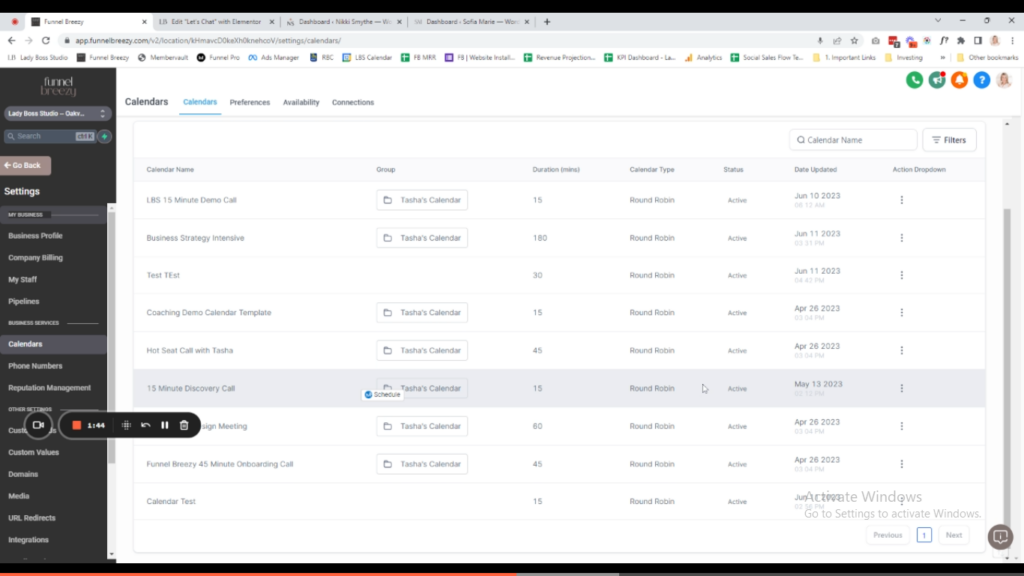
- Access Calendar Settings in infinity interface: Go to Calendars and then Calendar Settings.
- Copy Embed Code: Choose the specific calendar you want to embed and click the three dots. Select “Copy Embed Code.”
- Add HTML Widget in WordPress: On your WordPress page (new or existing), go to the Widgets panel. Search for “HTML” and add the HTML widget.
- Paste Embed Code: Paste the copied embed code from infinity interface into the HTML widget.
- Update and Preview: Click “Update” to save the changes. Preview the page to see the embedded calendar.
Method 2: Using a Button with a Link
- Create a Button: Add a button to your WordPress page using the button option available in your theme’s editor.
- Copy Scheduling Link: In infinity interface, go back to the appointment type settings for the calendar. Click the three dots and select “Copy Scheduling Link.”
- Paste Link to Button: Paste the copied scheduling link into the button settings on your WordPress page. Choose “Open in a New Window/Tab” for the link behavior.
- Update and Preview: Click “Update” to save the changes. Preview the page to see the button. Clicking the button will open the calendar in a new window.
Choosing the Right Method
- Use the embedded code method if you have enough horizontal space for the calendar to display properly without a scrollbar.
- Use the button with a link method if you have limited space or prefer a cleaner look.


